 Fri 10 Apr, 2026
 Gbolade Ogunfowote
You’ve built a WordPress website, and everything looks good and complete. You send the link to the client, feeling like the work is done.
Then they start testing it.
They click a button that should lead to the About page, but it opens a service page instead. They try to fill out a form on the contact page, but the fields are not even working. They read through the content, the email is wrong, the phone number is off, and the address doesn’t even match what was provided. They keep scrolling, and something just feels off; spacing is inconsistent, a section breaks on mobile, and the whole experience is just not great.
Some of these things, clients will not even notice.
Many technical teams don’t run proper QA. In some cases, there is no QA process at all. Even in teams that have testers, some of these issues still slip through. Because repeated exposure makes the errors easy to miss. After working on something for too long, your eyes adjust to it.
That is why it is the responsibility of the technical team to check beyond the surface level. Things like functionality, consistency, speed, and small details before anything goes live.
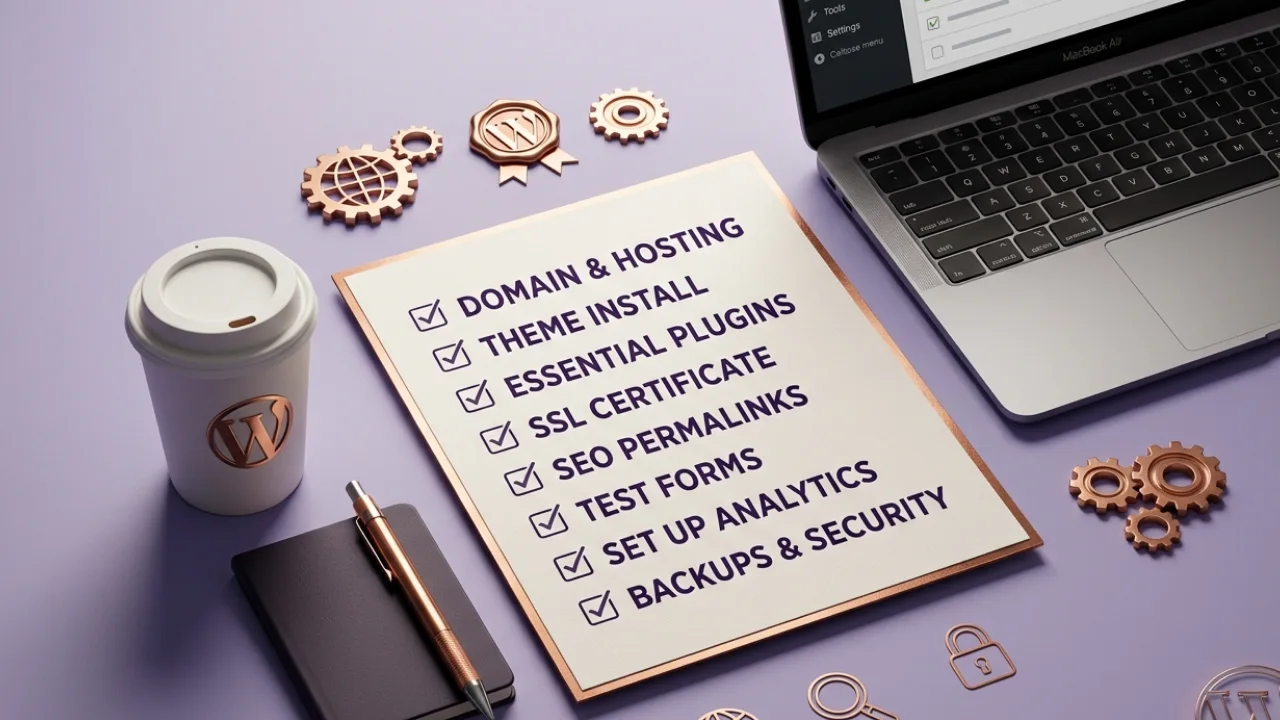
This guide will walk through what to check before launch and what to verify after launch, so nothing important slips through.
Pre-Launch Checklist (What to Fix Before Going Live)
It starts with the basics. Things that look small, yet can affect how the entire WordPress website functions and how the client experiences it.
General Settings and Admin Setup
Here’s what to check:
- Correct admin email
The email connected to the site should be the client’s preferred email, not a placeholder or a developer’s email. This affects notifications, password resets, and form alerts. - Clean dashboard
The admin area should be simple and easy to use. Remove anything the client does not need so they are not confused when they log in. - Remove demo content
Demo pages, placeholder text, and sample posts have no business on a live site. Go through every page and clear out anything that does not belong. - Set permalinks properly
Use clean URLs like post name format. This helps with SEO and makes links easier to read and share. - Turn off maintenance mode
A website can be fully ready and still hidden from users just because maintenance mode is active. Always confirm it is turned off before launch. - Time zone configuration
The website should reflect the client’s location. This affects blog posts, scheduled content, and time-based actions. - Limit plugins
Too many plugins can cause conflicts and reduce performance. Keep only what is needed for the site to function properly.
Additional checks
- Create a user account for client admin
Have a proper login ready for the client. Share access at the right time. - Set site favicon
Replace the default icon with the client’s brand. - Custom login page with client branding
A simple touch that makes the website feel complete. - Change admin URL
Use something cleaner:/logininstead of/wp-admin. - Install caching plugin
Improves page load and overall performance. - Add video tutorial to dashboard
Helps the client manage the website without constant support.
Site Security Essentials
Once the general setup is in place, the next thing is security. A WordPress site that is not properly secured is open to easy attacks, spam, and unauthorized access. These are issues that can damage the website and the client’s trust if ignored.
Here is what to check
- Install a security plugin
A reliable security plugin helps monitor activity and block suspicious access attempts. - Enable 2FA for admin users
This adds an extra layer of protection beyond just username and password. - Limit login attempts
Prevent repeated login trials that can be used to guess passwords. - Add reCAPTCHA to forms
This helps block spam submissions and fake entries on contact forms. - Confirm SSL is active and working
The site should load over HTTPS. This protects user data and supports SEO ranking.
SEO Foundations (Before Google Sees Your Site)
Make sure the site is ready for search engines before it goes live. A well-built website without proper SEO setup can remain invisible online.
Here is what to check
- Set the correct site title and tagline
The brand name and message should be accurate. - Install an SEO plugin
This helps manage titles, descriptions, and overall SEO structure, e.g, Yoast SEO. - Write unique meta titles and descriptions for each page
Each page should clearly describe what it offers. This improves search visibility and click-through. - Set up XML sitemap
This helps search engines understand the structure of the website and index pages faster. - Connect Google Analytics and Search Console
This allows tracking of visitors, performance, and search visibility - Make sure the site is indexable
Check that search engines are allowed to crawl the site. A single wrong setting can hide the entire website from search results.
Old or Existing Website Considerations
If the client had a previous website, extra care is needed here.
Here is what to check
- Keep existing page links the same where possible
- Set up 301 redirects for changed pages
If a page must change, redirect the old link to the new one. This keeps traffic flowing and prevents broken links.
Content and Page Readiness
Here is what to check
- Proofreading across all pages
Go through each page line by line. Check spelling, punctuation, and sentence flow. - Working links and buttons
Every button should lead to the right page. Every link should open correctly. No dead ends, no wrong redirects. - Legal pages in place
Privacy Policy, Terms and Conditions, and Cookie Policy should be present and accurate. These pages are expected on any standard website and help build credibility.
Performance and Optimization
A WordPress website that loads poorly can push users away before they even explore what is on the page.
Here is what to check
- Run PageSpeed tests
Test the site on both desktop and mobile. Aim for strong scores, especially on mobile, where most users will visit from. - Set up caching
Caching helps the site load faster by storing parts of it for quick access. - Minify CSS and JavaScript files
Reduce file sizes so the browser can load the site faster and more smoothly.
Image Optimization
Images play a big role in how the site looks.
Here is what to check
- Use proper image sizes
Large images should be reduced. Banners can be kept under control, and smaller images should not carry unnecessary weight. - Use WebP where possible
This format keeps quality high and file size low. JPG and PNG can still be used if the WebP alternative doesn’t offer major size reduction. - Add alt text to all images
This helps with accessibility and improves SEO by giving search engines context about the images. - Enable lazy loading
Images should load only when users scroll to them. This keeps the initial page load faster.
Forms and Data Handling
Here is what to check
- Form submissions are working
Test every form like a real user. Fill it, submit it, and confirm that it goes through without issues. - Clear success and error messages
After submission, users should see a proper message. They should know if their action was successful or not. - SMTP configuration is active
Form entries should reach the client’s email inbox. - Form data is stored
Submissions should not rely on email alone. There should be a backup inside the dashboard where the client can view all entries.
User Experience and Responsiveness
A WordPress website should be smooth, predictable, and easy to move through.
Here is what to check
- Mobile responsiveness as priority
Most users will visit on mobile. The site should adapt properly across different screen sizes. - Cross-browser testing
Open the website on Chrome, Safari, Edge, Firefox, e.t.c. Layout, fonts, and interactions should remain consistent. - Navigation works as expected
Menus, dropdowns, and links should guide users without confusion. - UI consistency across pages
Buttons, fonts, colors, and spacing should match across the entire site. - 404 page is active and helpful
If a user lands on a wrong link, they should see a proper 404 page with a way back to the homepage. - Search functionality works properly
If the website includes search, results should display correctly and guide users to relevant content.
E-commerce (If Applicable)
If the WordPress website includes payments or product sales, then extra attention is needed here.
Here is what to check
- Payment gateway is set to live mode
No test mode during launch. Transactions should work with real payments. - Shipping is configured correctly
Rates, locations, and delivery options should match what the client has approved. - Checkout process is smooth
Remove unnecessary fields. Keep it simple so users can complete purchases without delay. - Order emails are working
Both the admin and the customer should receive confirmation emails after each order. - Currency setup is accurate
The correct currency or multiple currencies should be displayed based on the client’s needs. - Refund and return policy is available
Customers should be able to find this information easily before making a purchase.
At this point, the WordPress launch checklist covers everything from first interaction to final transaction. When all these pieces are in place, the site is ready to perform.
Conclusion
A website launch is the point where real users start interacting with what has been built.
Small things that look harmless during development can turn into real problems once the site goes live.
This is why a structured checklist matters. It removes guesswork and gives the team a clear way to confirm what is ready and what still needs attention.
In the end, the difference between a working site and a successful one is what happens before launch and what happens after it goes live.
Launching a WordPress Website Soon? Let’s Get It Right the First Time
If you are building or preparing to launch a WordPress website, the process you follow makes a huge difference in how it performs after going live.
At Mactavis, we do not just push websites live. We go through every detail to make sure the site works properly, feels smooth to use, and is ready to bring results from day one.
Talk to our team. Let’s build something that works properly from the start.